Combo Graph - NEW
Creating a new Combo
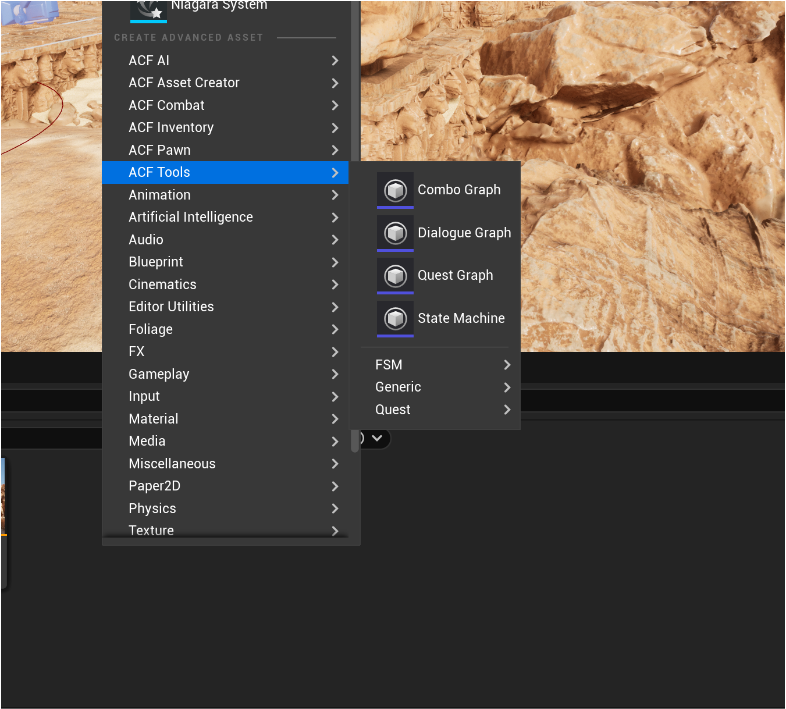
To create a new Combo asset you can just right click in the content broser and select ACF Tools -> Combo
Open your newly created Combo Asset, and you can start adding nodes simply by right-clicking on the empty space.
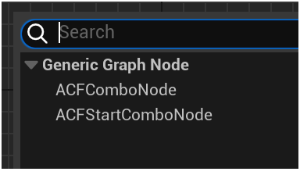
Combo Start Node: This node identifies the beginning of a combo.
Combo Node: A node that identifies an animation within the combo chain.
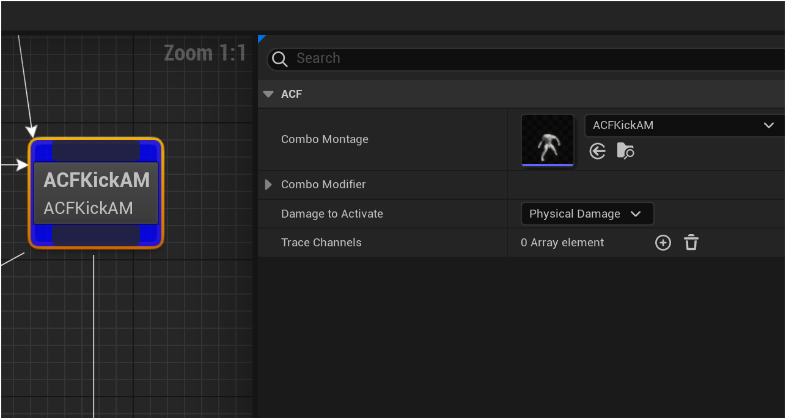
Clicking on any of the created nodes allows you to edit their properties on the right. Specifically, for each node, you can adjust its properties.
In particular, you can set the animation related to that node in the combo chain, choose which Collision Trace to activate, and add any AttributeSet Modifiers specifically during that combo animation. This allows each attack in the combo to deal different damage.